

Help Your account
Name, picture and deleting
The basics of each world: what it's called, its picture, and removing it.
Name and description
Open your world, then Name, details and delete. The name is what visitors see at the top of the map; the description shows in the community showcase. Changing the name doesn't change the map's link: for that, see Your map's address.
The world's picture
The world's picture is the big picture on its card, on your dashboard and in the community showcase, and its small icon in menus. When you upload a world, BedrockMap uses the picture Minecraft shows in your worlds list. On Bedrock that's a wide screenshot of the world. Java's is a small square icon, so a Java world's card shows a view of your map instead, as does any world without a picture.
To use a different one, choose Upload a picture: any picture up to 2 MB. Wide pictures (16:9) suit the card best; nothing is cut off when it's saved, and small pixel art is enlarged with crisp edges.
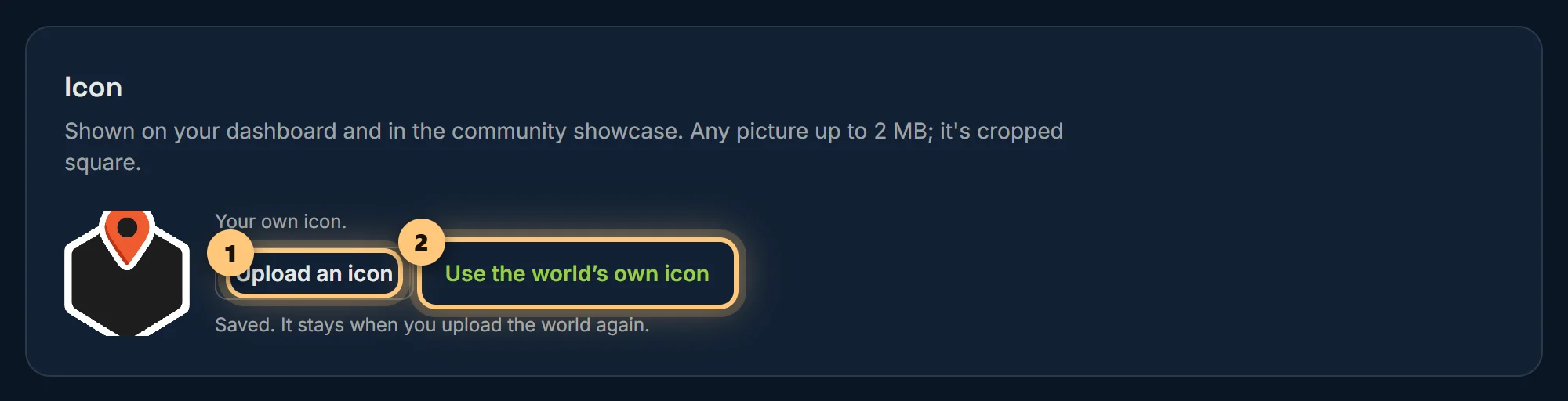
Your own picture stays when you upload the world again. Use the world's own picture goes back to the one from the world file.
Deleting a world
At the bottom of the page, type the world's name to confirm, and choose Delete the world and its map. The map, its snapshots and the uploaded world file are deleted.
Its address is kept for you for 30 days, so if you upload the world again, it gets its old link back. Renders already used today still count.
Deleting can't be undone. If you might want the map again, make it private instead.
Ready to make a map, or need to change something?
Open your dashboard