

Help Getting started
Your first map
A quick preview comes first, so you can check it before rendering the whole world. Then it's yours to share.
The preview
The first render of a new world is a preview: 1,500 × 1,500 blocks around the world's spawn. It's quick, and it lets you check everything looks right before using time on the whole world.

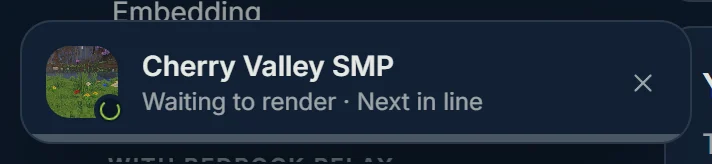
While it renders, the overview lists every step and ticks each one off: unpacking, then drawing each dimension, with what's happening in it (drawing the map, building the zoomed-out views, saving). A dimension the world has never visited is crossed off with nothing to draw. With Premium, the isometric view is built last, after your map is already live. You can leave the page; a small box in the corner keeps track wherever you are on the site, and says when the map is live.
Rendering the whole world
When you're happy with the preview, choose Render the full world. BedrockMap maps as much of each dimension as your plan allows, centred where the world's been built. To choose exactly what's mapped first, open Render area and dimensions.
Big worlds take a while: from a few minutes for a small survival world, up to an hour or so for a 30,000-block map with textures. It's done on our side, so you can close the page.
Each render uses one of your renders for the day: 2 on Free, 20 on Premium. Changing settings that don't need a render, like markers or viewer defaults, never uses one.
Waiting in the queue, and cancelling
When lots of maps are being drawn, yours waits its turn, and the overview says how many worlds are ahead of it. Premium renders go ahead in the queue.
- Changing settings while it waits: save them as usual. The waiting render uses whatever's saved when it starts, so there's no need to cancel it or render again.
- Cancelling: choose Cancel render under the progress bar on the world's overview. A render that hadn't started yet doesn't count towards the day's renders. One that's already rendering stops, but still counts.
Cancelling leaves the map as it was. Choose Render now when you're ready to render it again. Once your new map is live and only the isometric view is still being built, the render can't be cancelled.
Sharing your map
Your map's link is under its name on the world's pages. Share copies it, or opens your phone's share sheet; Open map takes you to it.

New maps are public, so anyone with the link can look. To keep a map to yourself and the people you choose, see Who can see it.
When settings change
Some settings change how the map is drawn, like its area or appearance. The map keeps showing the last render until you render again, and the world's pages say Settings changed, with a Render now button in the sidebar.
Ready to make a map, or need to change something?
Open your dashboard