

Help Your map
Viewer defaults
How the map looks the moment someone opens it. Changes here apply straight away, with no render.
Where it opens
For each dimension, move and zoom the map to where it should open; the cross in the middle marks the spot. Or type the X and Z. Choose a background colour for the space around the world.
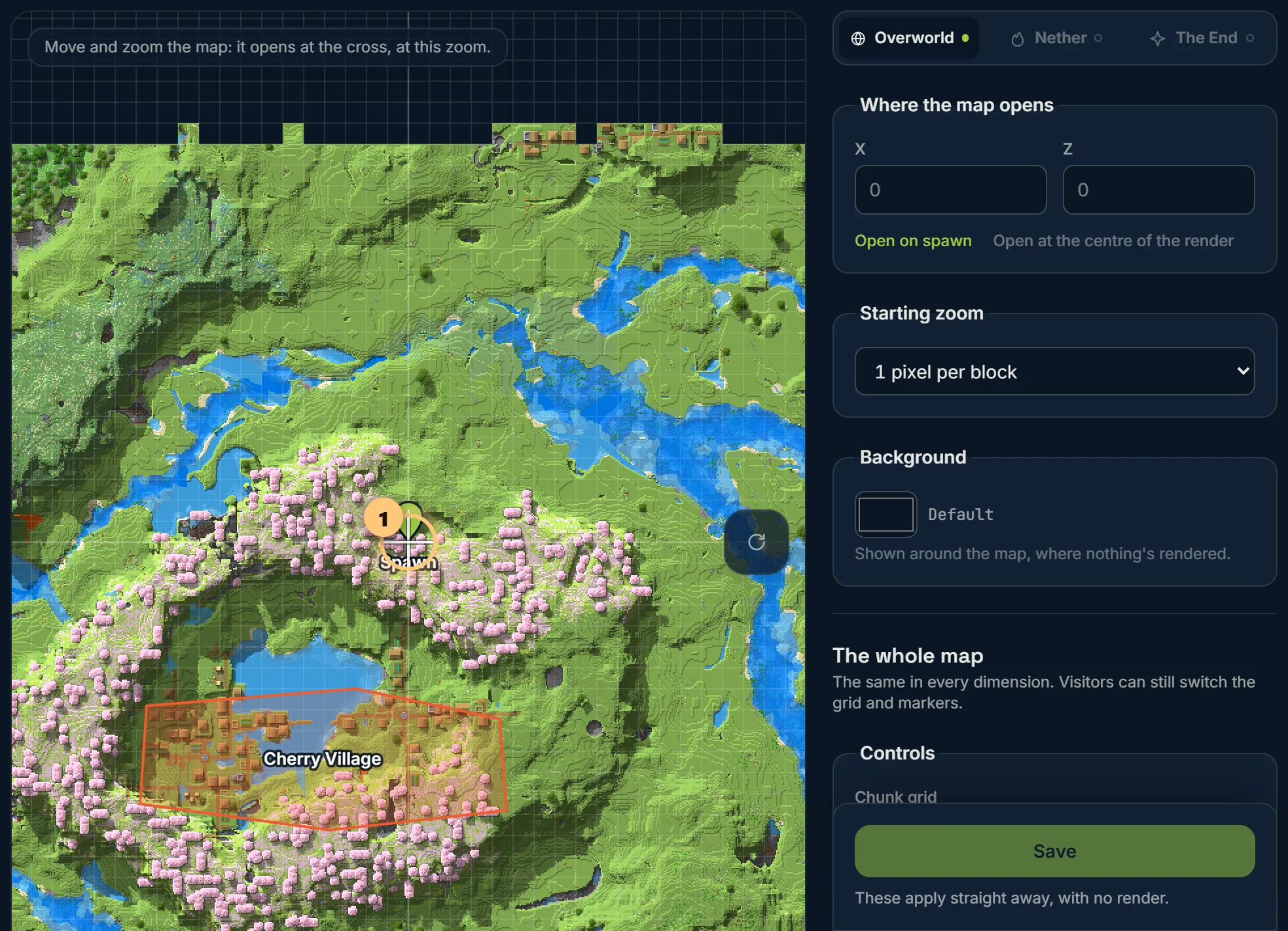
For the whole map
- Chunk grid: chunk lines close in and region lines further out, region lines only, or none. Visitors can still switch it with G.
- Scale bar in the corner.
- At the top of the screen: which way is up, north by default. Visitors can turn the map lets them turn it themselves.
- Show markers and show regions when the map opens. Visitors can still switch them.
- Show spawn: the pin where players first arrive in the Overworld. Turn it off to leave spawn off the map altogether.
- Marker names: always, or only when pointed at.
- Marker details open: when a marker is clicked, or as soon as it's pointed at.
- Popup style: how the box looks when someone clicks a marker or region. Several looks, from BedrockMap's own to parchment and stone (Premium).
- Show "Made with BedrockMap": the small badge in the corner. Premium maps can hide it.
Time of day
Time of day chooses how the Overworld opens: by Day, at Dusk (the sun going down, lamps coming on) or by Night, lit by your torches, lanterns, lava and glowstone. It's the same on the 2D map and the isometric view, and visitors can still switch. Changing it needs no new render; your lamps show from your next render on. It's a Premium setting.
With Bedrock Relay or our Java plugin connected, the map can instead follow the time it is in your world: switch on Follow the world's time on the World's time page, under Integrations. While your world isn't sending its time (a Realm with nobody on, a server that's off), the map opens at the time chosen here.
Glass in the isometric view
In the game, clear glass is only its frame, so in the isometric view glass buildings can look like empty wireframes. Glass under Isometric view fills it in: at 0% it's as clear as in the game, and further up it's tinted more and more with the glass's own colour, until at 100% it's solid. Below solid you can still see inside. It's a Premium setting, like the isometric view itself.
Unexplored land
With Fill it in from the seed on, the parts of the map nobody has explored show the biomes your world's seed would generate there, muted so the real world stands out. In the Overworld they're shaded by height; in the Nether they're flat. The End is mostly empty space, so it gets none.
It's drawn when a visitor looks, and your seed never leaves BedrockMap: visitors can't find it from the map. Superflat and void worlds don't get it.
If the land it fills in doesn't match what you find in the game, your world may have been made with a different seed or in an older version. Some older worlds store a different seed from the one they were made with, and land made in an older version was generated differently. Under the switch, put your world's real seed in Seed, and pick the version its land was made in under Made in. Only versions where the land changed are listed: if yours isn't there, pick the nearest one before it. These stay as you set them when you upload again. Leave them as they are to use your world's own.
Java worlds can go back to 1.1. Bedrock worlds go back to 1.18: before that, Bedrock made its land in a way that can't be drawn.
Ready to make a map, or need to change something?
Open your dashboard