

Help Your map
Appearance
How your map is drawn: shadows that make hills stand out, and Minecraft's own block textures. Try each on our sample world before you render.
Trying it first
The big square is a 128 × 128 block patch of our sample world, drawn by the renderer itself with your settings, so you see each change in a few seconds. Drag the line across it: on the left is how your map is drawn now, on the right how it would be with your changes.
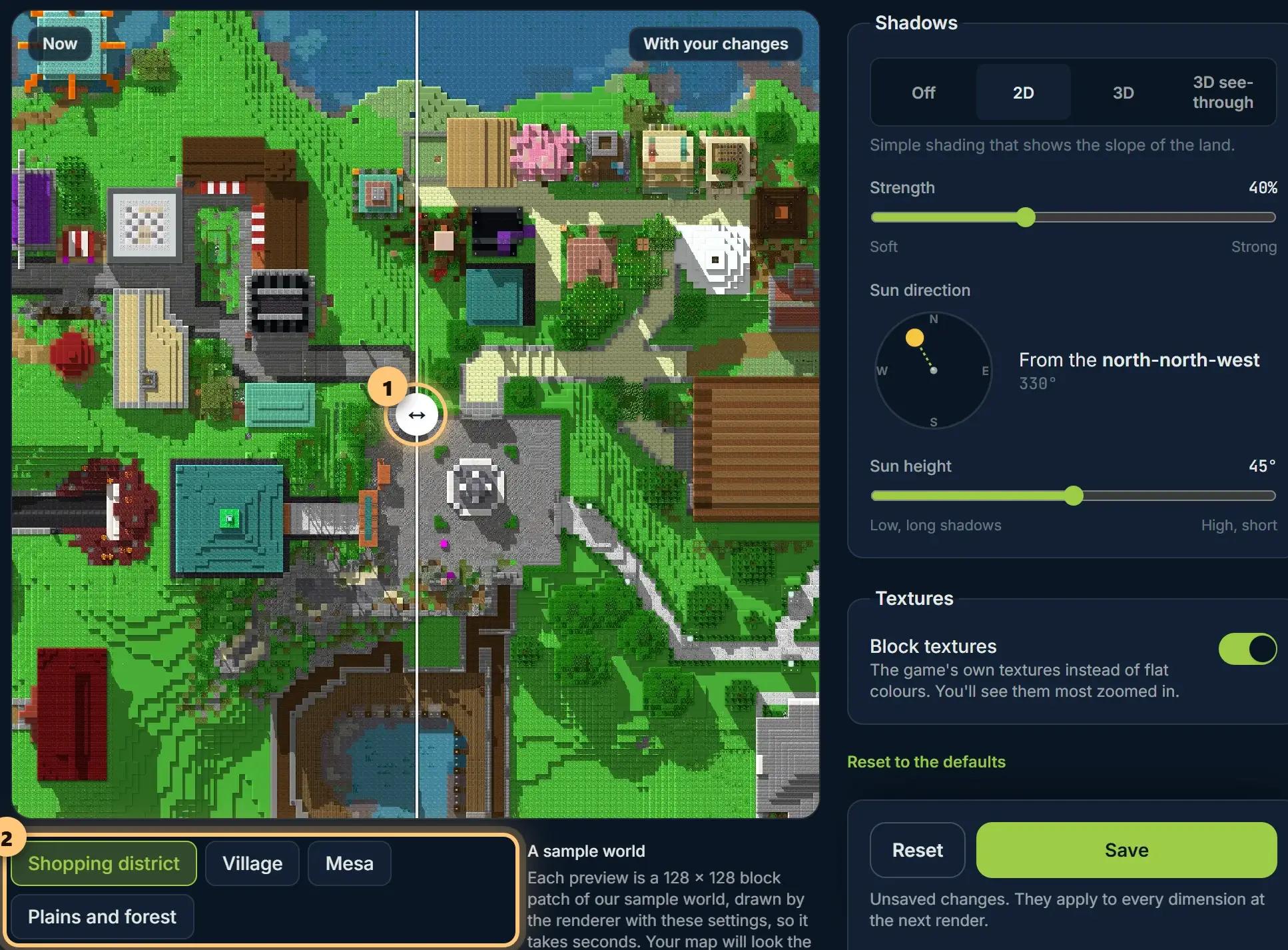
Choose a place underneath to see how the settings look on other kinds of land: a village, trees, water. Your map is drawn the same way at its next render.
Shadows
| Off | Flat colours, like Minecraft's own map item. |
| 2D | Simple shading that shows the slope of the land. |
| 3D | Real shadows: builds and trees cast them on the ground. |
| 3D see-through | As 3D, with water and leaves letting some light through. The default. |
- Strength: soft or strong shadows.
- Sun direction: drag the sun round the compass. The shadows fall the other way.
- Sun height: low for long, dramatic shadows; high for short ones.
Block textures
With Block textures on, every block is drawn with its real texture instead of one flat colour, so builds look like they do in game. You see them most when zoomed in.
Saving
The same appearance is used for every dimension. Save keeps it for the next render; to start one, choose Render now in the sidebar. If a render is already waiting in the queue, it uses what you save. Reset, beside Save, undoes your changes, and Reset to the defaults goes back to what a new world starts with.
Shadows and textures are Premium. On Free you can still preview them here, to see the difference on your own world.
Ready to make a map, or need to change something?
Open your dashboard