
Help Adding to your map
Regions
Coloured, named areas on your map: towns, claims, builds in progress. Visitors click one for its name, size and description.
Drawing a region
- Open your world, then Regions, and choose Draw region.
- Click the map for each corner. Finish by clicking the first corner again, or double-click. Backspace takes back the last corner; Esc stops.
- Name it, pick a colour and how strongly it's tinted, and choose Add to the map.
Reshaping and moving
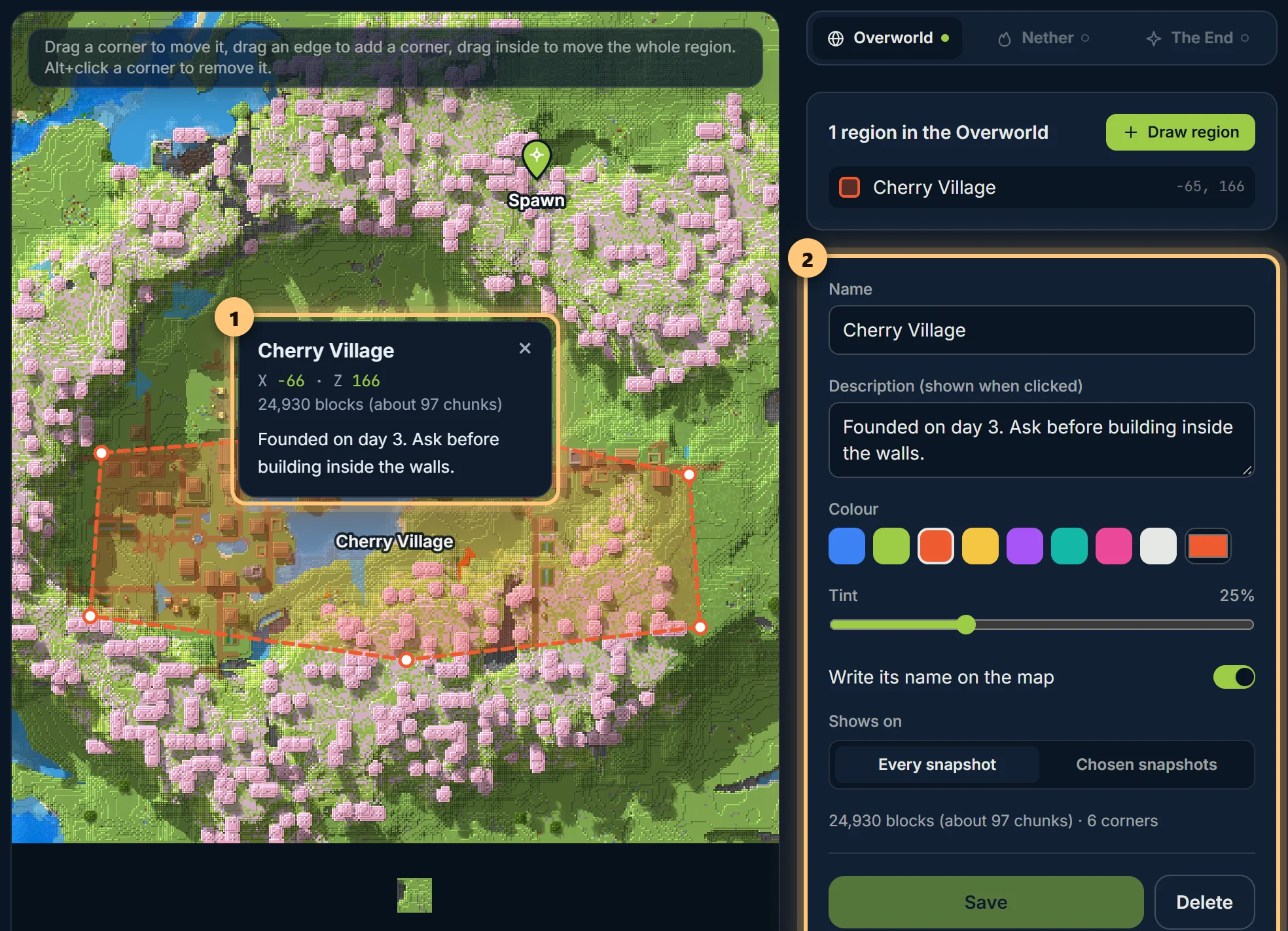
Click a region to edit it. Then drag a corner to move it, drag an edge to add a corner, or drag inside to move the whole region. Alt+click a corner to remove it. Unsaved changes stay while you click about, and the region's popup shows what visitors will see.
Options
- Write its name on the map: the name in the middle of the region, hidden when zoomed out too far for it to fit.
- Description: shown when a visitor clicks inside it.
- Shows on: every snapshot, or the ones you choose.
Visitors can hide regions with the regions button or A.
Regions are part of Premium, up to 200 a world.
Ready to make a map, or need to change something?
Open your dashboard