

Help Adding to your map
Timeline
Keep each render as a snapshot, so visitors can step back through your world's history.
Turning it on
Open your world, then Timeline, and switch on Keep each render. From then on, every render is kept: up to 10. When a new render would make 11, the oldest one that isn't locked goes.
Unchanged parts of the world cost nothing to keep, so snapshots of a world that's grown a little are small.
Managing snapshots
The Timeline page lists your snapshots newest first.
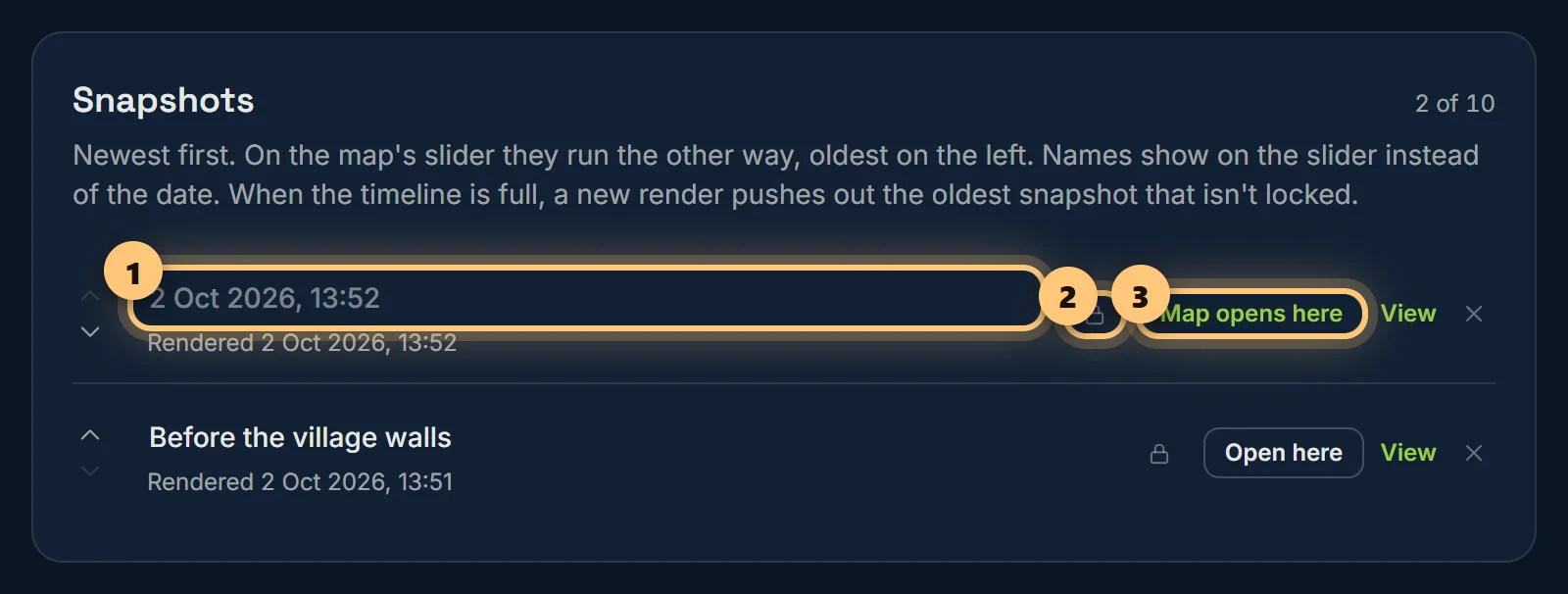
- Name a snapshot, like "Before the castle": the name shows on the map's slider instead of the date.
- Lock one to keep it for good. New renders never push a locked snapshot out. Up to 9 can be locked, so there's always room for the next render.
- Open here chooses the snapshot the map opens on. Usually the newest.
- View opens that snapshot on the map; the arrows reorder them; the cross deletes one.
Markers and regions can be limited to chosen snapshots, so a marker for a build only shows once it was built.
Turning it off
Turning the timeline off keeps only the snapshot the map opens on, and deletes the others, locked ones included. You're asked first, and told which one is kept. From then on, each render replaces the last.
The timeline is part of Premium. If Premium ends, visitors see only the snapshot the map opens on, and the next render replaces it, as on Free. The other snapshots go at that render.
Ready to make a map, or need to change something?
Open your dashboard