
Help Your map
Exploring a map
Everything a visitor can do on a map, on a computer or a phone. Share this page with your players.
Moving around
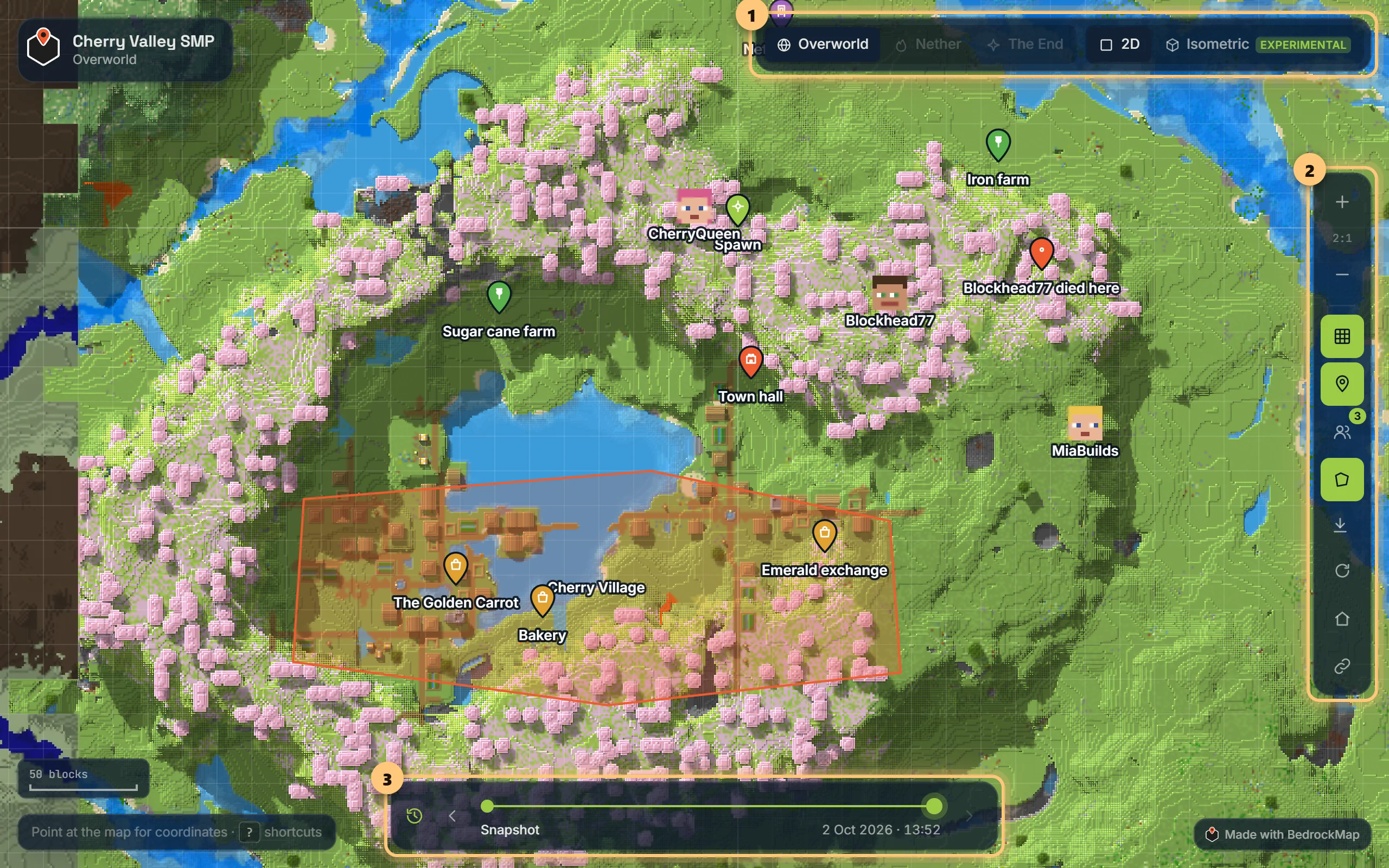
- Drag to move, scroll or pinch to zoom. Zoom in far enough and every block is several pixels wide.
- Point at the map to see the X and Z coordinates under the pointer, with the chunk and region.
- The address in your browser follows the map, so copying it shares exactly what you're looking at. The link button on the right copies it for you.
Dimensions and views
- Overworld, Nether and The End: the ones the world has, and the owner has mapped.
- 2D or Isometric: isometric shows the world from an angle, so hills and builds stand up. Drag to move, and R turns it.
Isometric is only on some maps: the owner needs Premium, it's made by a full render of the Overworld (not a preview), and it's off while the owner hides parts of the map. Where there's no isometric view, the button isn't shown.
Switching keeps you on the same spot, zoom and snapshot, so you can flip between views to compare.
Markers and regions
Markers are the owner's pins: homes, shops, portals. Click one for its name and notes. Regions are coloured areas, like towns or claims; click inside one for its name and size.
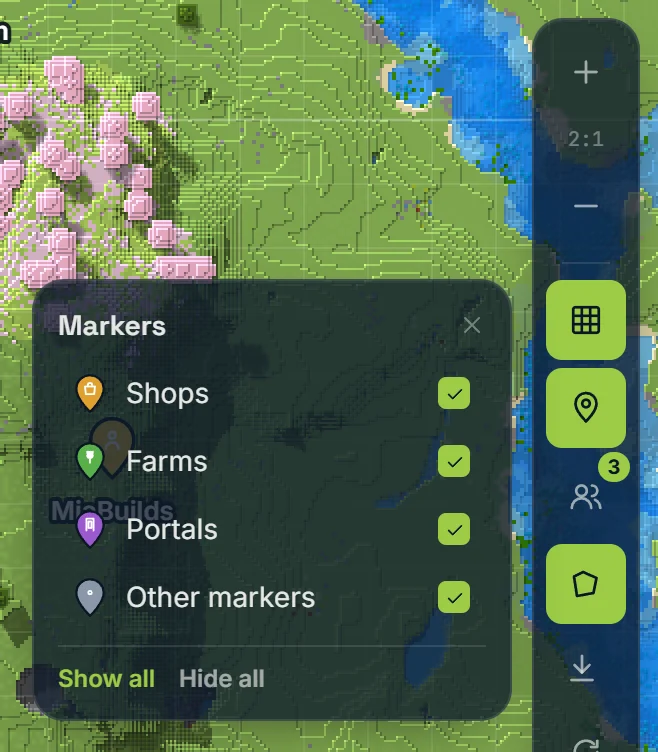
The pin button shows or hides markers. When the owner has sorted markers into types, it opens a list to choose which types show; your choice is remembered next time.
In the isometric view, markers stand where they are in the world: on the ground, a roof or a hill, or at the height they were placed in game. Markers further back are drawn a little smaller and fainter, so you can tell what's in front. Where several are on one spot, the pin shows how many: click it to choose one. Regions show on the 2D map only, for now.
Players online
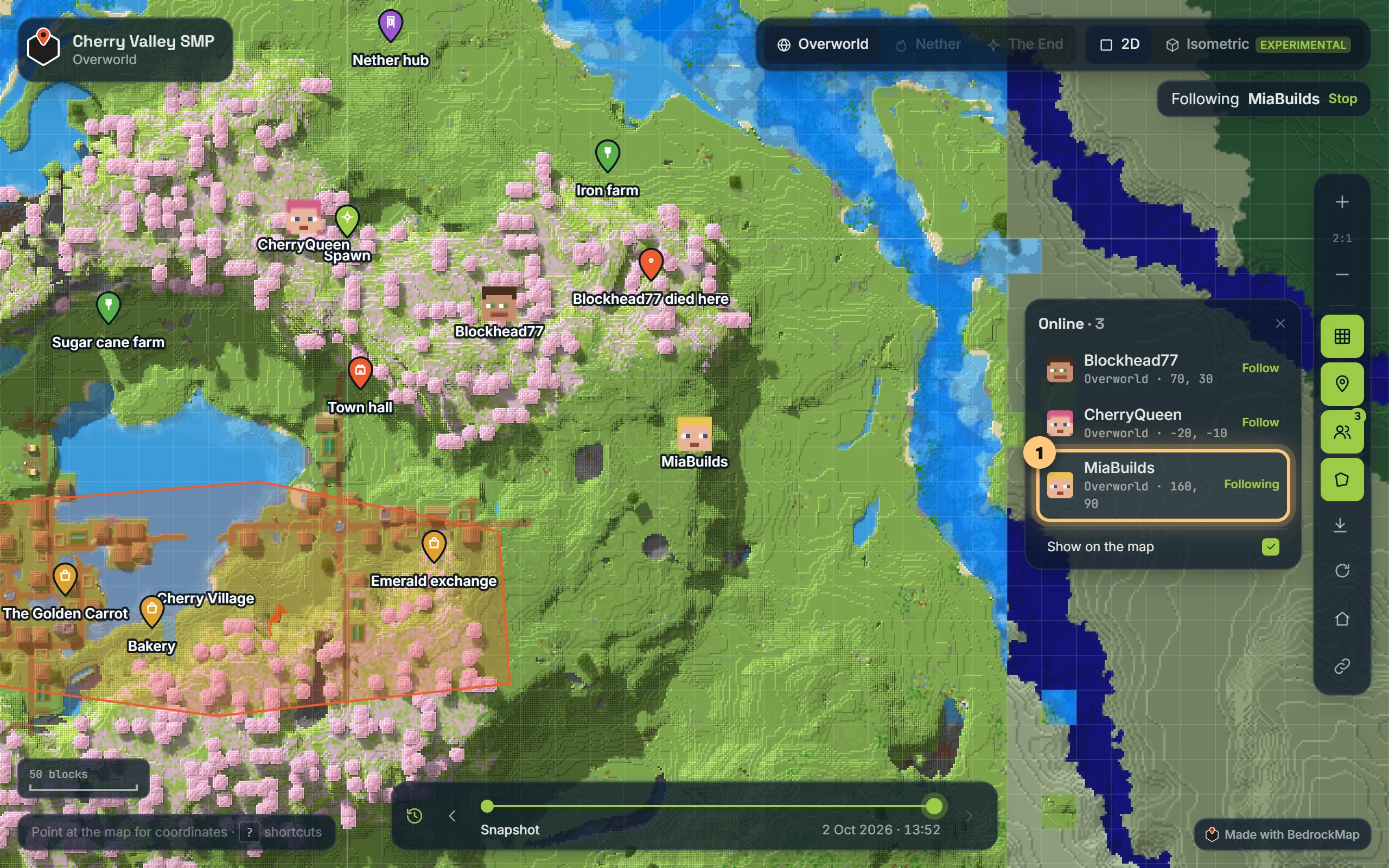
On maps connected to Bedrock Relay, players appear on the map as they move. The players button lists who's on and where: click someone to follow them around the map, even into another dimension. Moving the map yourself stops following. A note pops up when someone joins or leaves. In the isometric view players are shown at their height, underground too, and following works there as well.
Day, dusk and night
On some maps the Overworld can be seen at dusk or by night: the sun button with the map's tools switches between Day, Dusk and Night (N). At night the world is lit by moonlight and by its own torches, lanterns, lava and glowstone, as in the game: light pools around lamps and stops at walls. It works on the 2D map and the isometric view alike. The owner chooses which the map opens at; you can change it.
Some maps follow their world's own clock: when it's night in the game, it's night on the map, and the button says so (as in the world now). Pick a time yourself and the map stays at it while you look.
In the isometric view, the clock button (T) goes further: a slider moves the sun across the sky through the day, with its shadows, then the moon. At noon it's where the owner put the map's sun.
Dusk and night are on maps whose owner has Premium. The Nether and the End have no day or night, so they're always shown as they are. Light shows on maps rendered since it arrived; older renders are dimmed without their lamps until their next render.
The timeline
When the owner keeps every render, a slider along the bottom steps through them, oldest on the left. Use it to see how the world grew. [ and ] step back and forward.
The isometric view has the timeline too, with the renders that have an isometric view: the ones made after it arrived in October 2026, while the owner had Premium.
Keyboard shortcuts
| + − | Zoom in and out |
| 1 2 3 | Overworld, Nether, The End |
| I | Isometric or 2D |
| [ ] | Earlier or later snapshot |
| G | Chunk grid |
| R | Turn the map (when the owner allows it) |
| M | Markers |
| A | Regions (areas) |
| P | Players online |
| N | Day, dusk or night (where the map has them) |
| T | Time of day in the isometric view (where the map has it) |
| ? | Show these on the map |
Ready to make a map, or need to change something?
Open your dashboard