How to use the Map Viewer
A comprehensive guide to navigating and using the interactive map viewer interface.
Opening your map
There are several ways to access your rendered map:
- Click View Map from your dashboard world card
bedrockmap.net/map/your-world-slug- Premium users can also enable a custom subdomain like
your-world-slug.bedrockmap.net - Share the URL with friends (they'll need the access key if your map is private)
The map viewer will load and display your world with the default settings you configured.
Navigation controls
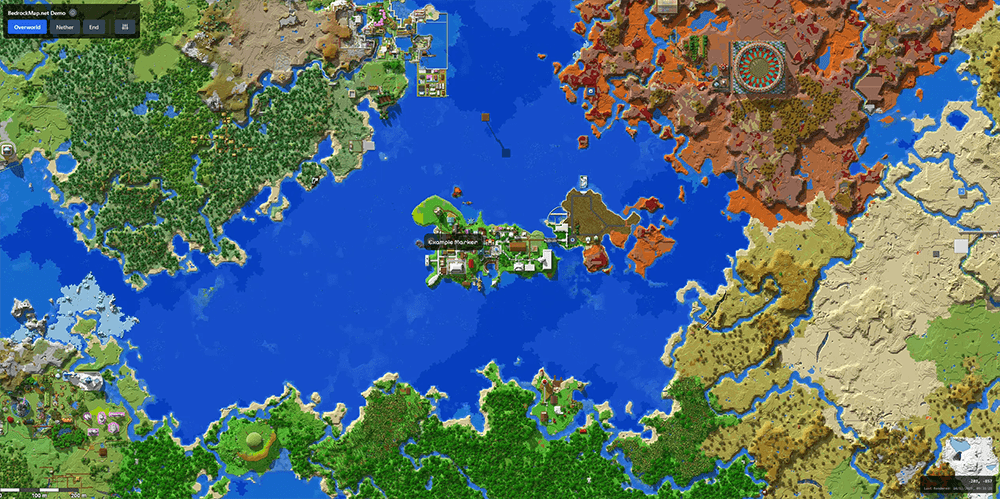
Navigate your map using these controls:
- Mouse/Touch: Click and drag to pan around the map
- Scroll Wheel: Zoom in and out
- Pinch Gesture: Zoom in/out on touch devices
- Double-Click: Zoom in on a specific location
Tip: Hold Shift while dragging to draw a box around an area - the map will zoom in and center on that area when you release.
Using the dimension switcher
If your world has multiple dimensions rendered, switch between them:
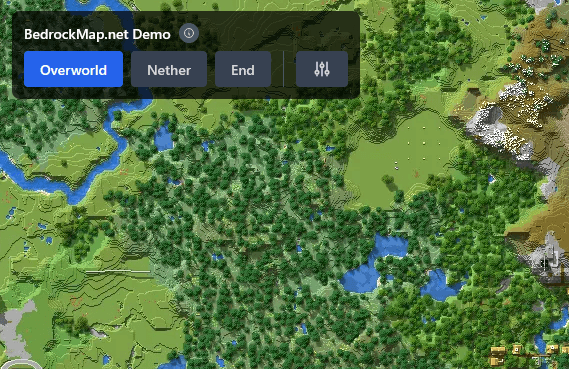
- Look for the dimension tabs in the top-left corner of the map viewer
- Click on Overworld, Nether, or End
- The map will reload to show the selected dimension
- Each dimension maintains its own zoom level and position
Coordinates are automatically adjusted when switching between dimensions (e.g., Nether coordinates are scaled 8:1).
Nether Y-Level: The Nether view is rendered at the Y-level configured in your dashboard's Dimension Settings. You can adjust this to slice the Nether at different heights (e.g., below the bedrock ceiling). Changes require a re-render.
Mobile Users: On mobile devices, the dimension switcher and Map Controls are located inside the slide-out menu. Tap the burger menu icon (☰) in the top-left corner to access them.
Adding and removing markers on the map (Owner only)
If you own the map, you can add and remove markers directly from the map viewer:
Adding a New Marker
- Right-click anywhere on the map where you want to add a marker
- Select Add New Marker from the context menu
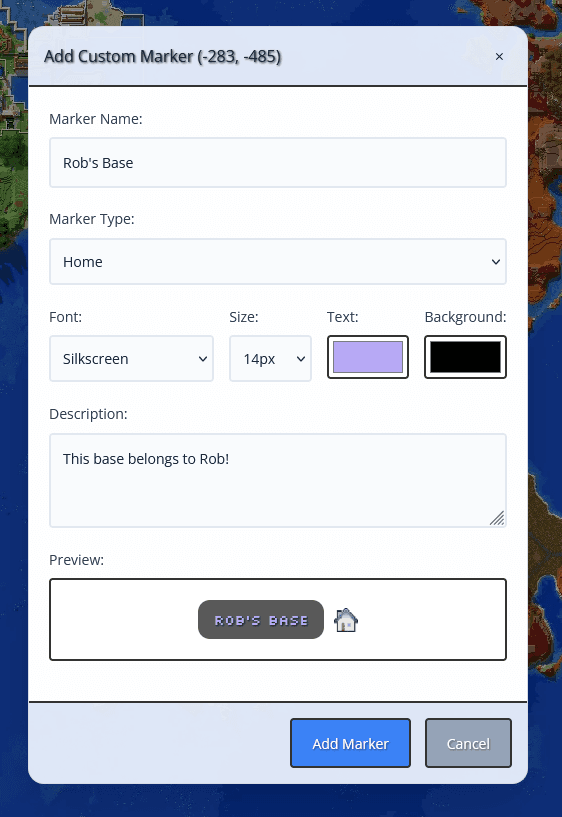
- A dialog will appear with the following options:
- Name: The title of your marker
- Description: Optional details about the location
- Marker Type: Choose an icon style (home, farm, shop, landmark)
- Font, Size, and Colors: Customize the marker's appearance
- Preview: See how your marker will look on the map
- Click Add Marker to place it on the map immediately
Editing or Removing a Marker
- Right-click on an existing marker
- Select Edit Marker from the context menu
- The edit dialog will open, allowing you to change the marker's name, description, type, and styling
- Click Save to apply your changes, or click Delete Marker to remove it from the map
Note: Only the world owner can add and remove markers from the map viewer. Regular map viewers will not see these right-click options.
Viewing and interacting with markers
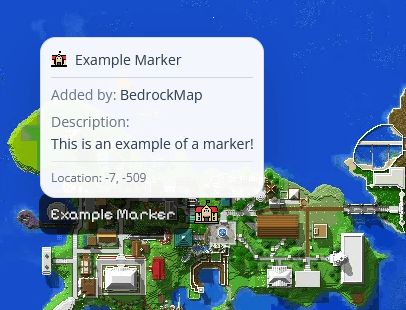
Markers appear as icons on your map at the locations you've set:
- Marker Display: Markers and their names are always visible on the map
- Click a Marker: Opens a modal with full details (title, description, coordinates, and any custom content)
- Toggle Markers: Use the Markers on/off option in the Map Controls panel to show or hide all markers
Marker List Panel
Use the Map Markers button in the controls panel to open a list of all markers on the map. Selecting a marker from the list will pan the map directly to that marker's location, making it easy to navigate maps with many markers.
The marker modal style can be customized by the world owner (Premium feature).
Using the coordinate display
The map viewer shows real-time coordinates as you move your cursor:
- Look for the coordinate display in the bottom-right corner
- Coordinates update in real-time as you move your mouse over the map
- Format:
X: ### Z: ### - Shows the exact in-game X and Z coordinates (horizontal position)
Use these coordinates to navigate in-game or to add new markers at specific locations!
Note: The map only shows X and Z coordinates (horizontal plane). Y coordinates (height/elevation) are not displayed as the map represents a top-down view of your world.
Toggling map overlays
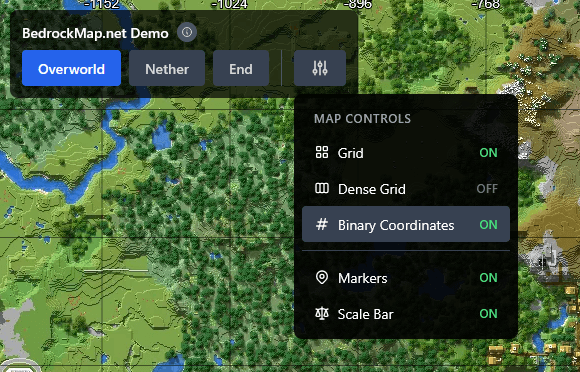
Customize your viewing experience with map overlays:
- Grid: Toggle the coordinate grid overlay
- Binary Coords: Switch between standard and binary coordinate display
- Markers: Toggle all markers on/off (includes player positions if live tracking is active)
- Scale Bar: Show/hide the distance scale indicator
Access these toggles from the Map Controls panel in the top-left corner of the map viewer, alongside the dimension switcher.
Browsing Timeline versions (Premium)
If you have Timelines enabled, you can browse historical render versions directly on the map:
- Look for the version selector (clock icon) in the map controls
- Click it to see all your saved timeline versions
- Select a version to view that historical snapshot of your world
- The current (latest) version shows your live map with markers and player positions
- Historical versions display the map as it was at that render, with markers hidden
The version selector only appears when Timelines is enabled and you have more than one version. For more details, see the Using Timelines guide.
Live player tracking (Premium)
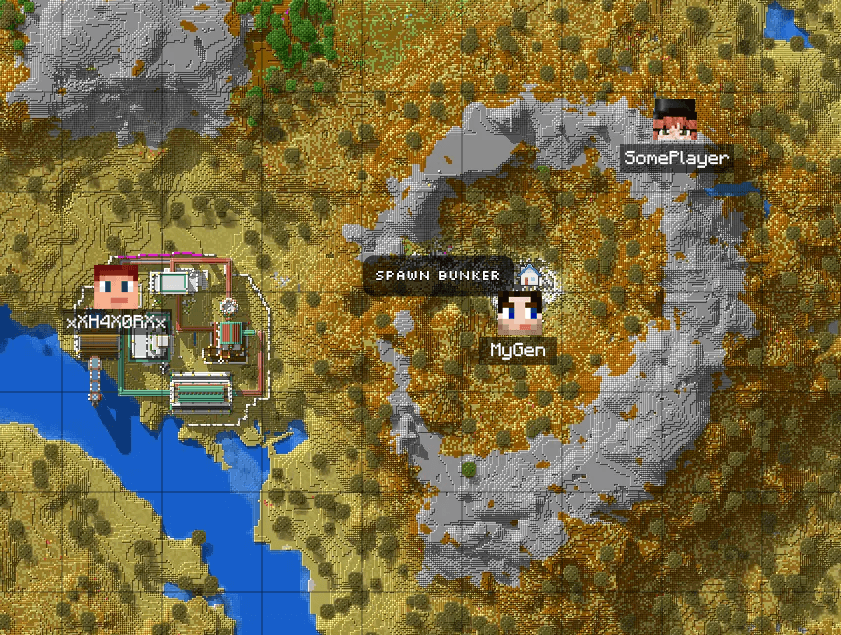
If the Premium addon (Bedrock) or plugin (Java) is installed and active, you can see live player positions:
- Player markers appear as player head icons on the map
- Player usernames are displayed alongside their icons
- Player positions update every 5 seconds automatically
- Offline players disappear from the map after 30 seconds
Live player tracking requires the Premium addon or plugin to be installed on your server. See the Bedrock addon guide or Java plugin guide for setup instructions.
Downloading the world
If the world owner has enabled world downloads, visitors can download a copy of the world directly from the map viewer:
- Look for the Download button in the map controls
- Click it to download a copy of the world file to your computer
- The downloaded file can be imported into your own Minecraft game
Note: The download button only appears on maps where the owner has enabled world downloads in their dashboard settings. Not all maps will have this option available.
Sharing your map
Share your map with others easily:
- Copy the map URL from your browser address bar
- If your map is private, share the access key with trusted users
- Users can enter the access key when prompted
Tip: You can customize your map's URL by changing the slug on your dashboard. This makes it easier to remember and share!
Community Gallery: To have your map appear in the BedrockMap community gallery, make sure your map is set to public AND tick the "Display my world on the community page" box on your dashboard.
You're all set!
If you have any questions or run into issues, don't hesitate to reach out for support.
Browse more guides →