How to prepare your world for upload to BedrockMap
A comprehensive platform-specific guide on exporting your Minecraft world (Bedrock or Java Edition) and preparing it for upload to BedrockMap.
Choose Your Platform
The process for exporting your Minecraft world varies depending on your edition and device. Select your platform below to jump to the relevant instructions:
Windows PC
Method 1: Export from Minecraft (Recommended)
- Launch Minecraft and select Play
- Find the world you want to export on the Worlds tab
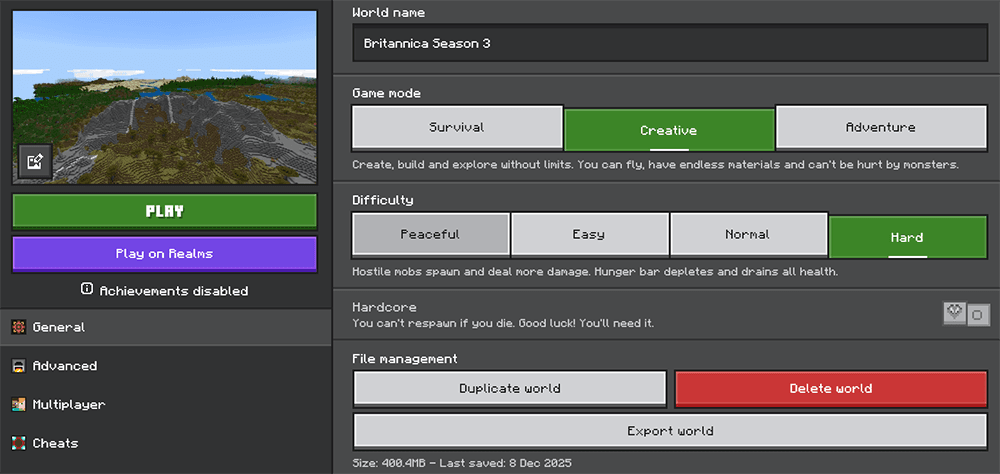
- Click the pencil icon next to the world name
- Select Export world from the General Settings under File management
- Modify any settings you'd like to enable (optional)
- Click Export world
- Choose a location to save the file and select Export
Method 2: Manual Zip from File System
- Press Win + R to open Run dialog
- Type
%appdata%\Minecraft Bedrock\Usersand press Enter - Open the folder with a long string of numbers (this is your user ID)
- Navigate to
games\com.mojang\minecraftWorlds - Find your world folder (check the
levelname.txtfile inside each folder to identify your world) - Open the world folder and select all files and folders inside (level.dat, db folder, etc.)
- Right-click the selection and choose Send to → Compressed (zipped) folder
- The resulting .zip file can be uploaded directly to BedrockMap
Note: Method 1 creates an .mcworld file, while Method 2 creates a .zip file. Both formats work with BedrockMap.
Android
Android has two different storage options in Minecraft settings: External and Application (default). The export method depends on your storage setting.
Method 1: External Storage (File Manager Access)
If your Minecraft storage is set to External, you can access worlds directly:
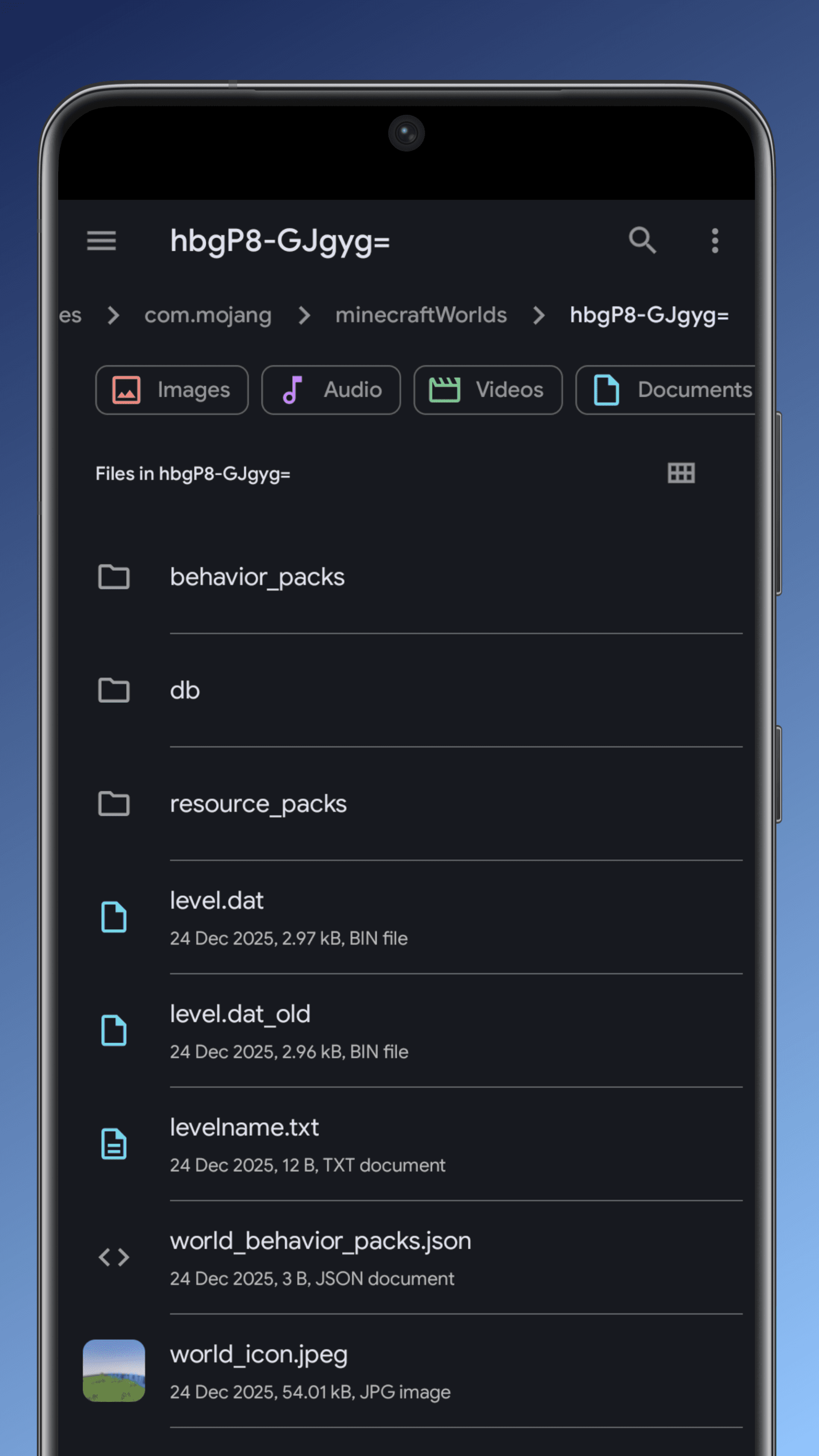
- Open your device's File Manager app
- Navigate to
Android/data/com.mojang.minecraftpe/files/games/com.mojang/minecraftWorlds - Find your world folder (check the
levelname.txtfile to identify it) - Open the world folder and select all the contents (not the folder itself)
- Tap the three dots menu and select Compress or Zip
- The resulting .zip file can be uploaded to BedrockMap or transferred to a PC via cloud storage
Method 2: Application Storage (Realm Transfer Required)
If your storage is set to Application (default), you need to use a Realm to transfer the world:
- Upload your world to a Realm (see the Realms section below for detailed steps)
- Download the world on another device with Minecraft (PC, iOS, or Android with External storage)
- Export the world using that device's method
Note: Android 11+ has restricted access to the Android/data folder for security. If you can't access this folder with your file manager, you'll need to use the Realm transfer method or use a file manager app with root access.
iOS (iPhone/iPad)
iOS allows direct access to Minecraft world files through the Files app.
- Open the Files app on your iOS device
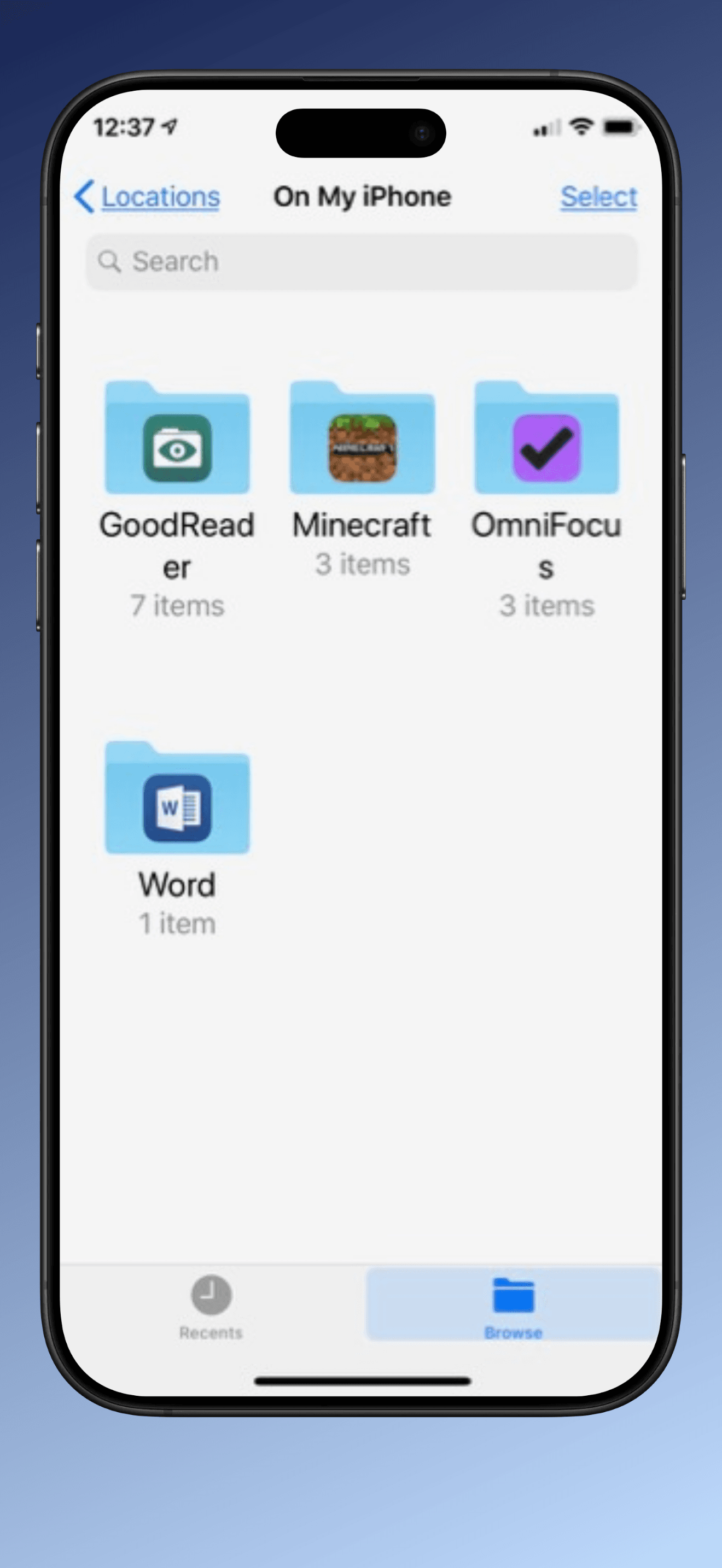
- Navigate to On My iPhone (or On My iPad)
- Open Minecraft → games → com.mojang → minecraftWorlds
- Find your world folder (tap folders to check the
levelname.txtfile) - Open the world folder and select all the contents (tap Select, then Select All)
- Tap the three dots menu and select Compress
- A file named
Archive.zipwill be created in the same folder - You can now either:
- Upload the .zip file directly to BedrockMap from your iOS device
- Share the file to cloud storage (iCloud Drive, Google Drive, Dropbox, OneDrive, etc.) and access it from your PC
Tip: Make sure you compress the contents of the world folder, not the folder itself. The .zip file should contain level.dat, db folder, etc. at the root level.
Console (Xbox/PlayStation/Switch)
Game consoles don't provide direct access to world files. You'll need to use a Minecraft Realm to transfer your world to another device where you can export it.
Step 1: Upload World to Realm
- Launch Minecraft on your console
- Select Play from the launch screen
- Select Realms and choose the Realm you want to use (you'll need an active Realm subscription)
- Select Settings on the Realm
- Select a world slot and select Edit World
- Navigate to the bottom of the Game Settings tab
- Select Upload World (if using an empty slot) or Replace World (if overwriting an existing world)
- Choose your world from the list and confirm the upload
Step 2: Download World on Another Device
- Launch Minecraft on your PC, iOS, or Android device and sign in with your Microsoft account
- Select Play from the launch screen
- Select the Realms tab and select your Realm
- Select Settings on the Realm
- Select the slot with your world and select Edit World
- Navigate to the bottom of the Game Settings tab
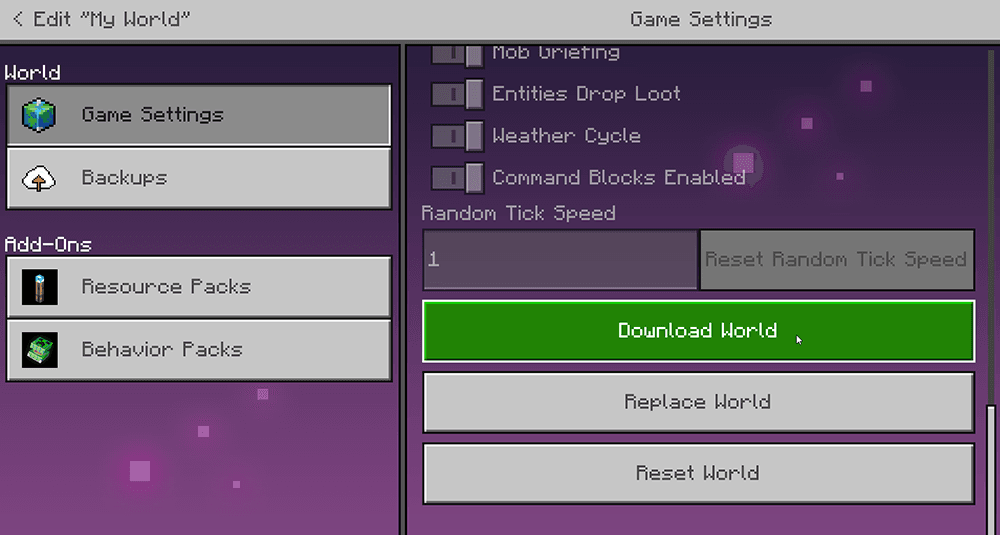
- Select Download World
- The world will appear on the Worlds tab as "[World name] - Copy"
Once downloaded, follow the export instructions for your destination device (Windows, iOS, or Android) to create the .mcworld or .zip file.
Note: This method requires an active Minecraft Realms subscription. If you don't have a Realm, you can start a free trial or subscribe for one month.
Minecraft Realms
If your world is already hosted on a Minecraft Realm, you can download it to any device with Minecraft.
- Launch Minecraft and sign in with your Microsoft account
- Select Play from the launch screen
- Select the Realms tab and select your Realm
- Select Settings on the Realm
- Select the world slot you want to download and select Edit World
- Navigate to the bottom of the Game Settings tab
- Select Download World
- The world will appear on the Worlds tab (usually named "[World name] - Copy")
Once downloaded to your device, use the appropriate export method for your platform:
Bedrock Dedicated Server (BDS)
If you're running a Bedrock Dedicated Server or using a hosting provider (Aternos, Bisect Hosting, Apex Hosting, etc.), you can export worlds directly from the server files.
- Stop your Bedrock Dedicated Server (to ensure all world data is saved)
- Navigate to your server directory
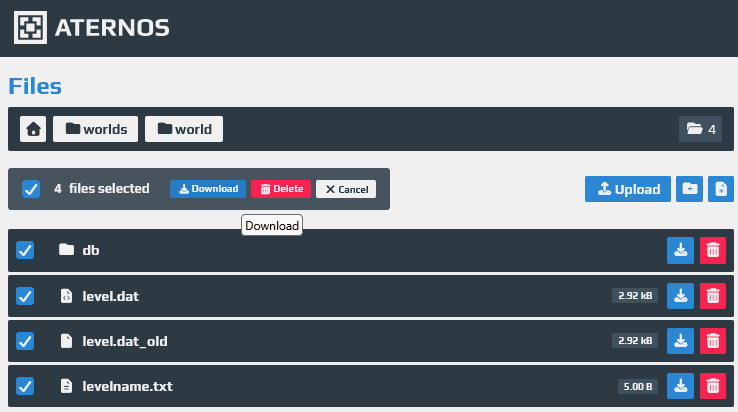
- Find your world in the
worlds/[WorldName]folder - Download the entire world folder using your hosting provider's file manager, FTP, or SFTP:
- Aternos: Use the Files section and download the world folder
- Bisect/Apex/Similar: Use their file manager or FTP access
- Self-hosted: Access via FTP, SFTP, or direct file access
- Once downloaded to your local device, compress the world folder contents into a .zip file:
- Windows: Right-click → Send to → Compressed (zipped) folder
- Mac: Right-click → Compress
- Linux:
zip -r worldname.zip *
- The .zip file is now ready to upload to BedrockMap
Note: Make sure to compress the contents of the world folder (level.dat, db folder, etc.), not the folder itself.
Java Edition
Java Edition worlds can be uploaded as .zip files. The process is the same regardless of your operating system.
Locate Your World Save
Your Minecraft Java Edition saves are stored in the following location:
- Windows:
%appdata%\.minecraft\saves - macOS:
~/Library/Application Support/minecraft/saves - Linux:
~/.minecraft/saves
Create the .zip File
- Navigate to your saves folder using the path above
- Find your world folder (it will be named after your world)
- Open the world folder — you should see files like
level.dat, aregionfolder, etc. - Select all contents inside the world folder
- Compress the selection into a .zip file:
- Windows: Right-click → Send to → Compressed (zipped) folder
- macOS: Right-click → Compress Items
- Linux:
zip -r worldname.zip *(from inside the world folder)
- The resulting .zip file is ready to upload to BedrockMap
Important: Zip the contents of your world folder, not the folder itself. The .zip file should contain level.dat and the region folder at the root level.
Java Servers: For Java dedicated servers (Vanilla, Spigot, Paper, Fabric, etc.), the world folder is typically in the server root directory (e.g., world/). Download the folder via FTP/SFTP, then zip and upload as described above.
Verify Your World File
Before uploading to BedrockMap, make sure your world file meets these requirements:
- File format:
.mcworldor.zip - Maximum file size: 5GB (Free) or 20GB (Premium)
- The archive should contain world files at the root level (level.dat, db folder, etc.)
- Optional: Test by double-clicking the .mcworld file - it should open in Minecraft
File Too Large? If your world file is over your plan's limit (5GB Free, 20GB Premium), you can use Bedrock Tool Chest to trim your world by removing unused chunks or dimensions.
Checking File Contents: To verify your archive contains the correct files, you can open it with any zip utility (WinRAR, 7-Zip, Archive Utility, etc.). For Bedrock worlds, you should see level.dat, levelname.txt, and a "db" folder at the root level. For Java worlds, you should see level.dat and a "region" folder at the root level.
Upload to BedrockMap
Now you're ready to upload your world to BedrockMap:
- Go to the BedrockMap Dashboard
- Click Upload New World
- Drag and drop your .mcworld or .zip file, or click to browse
- Your world will automatically begin uploading and rendering with default settings
Your world will be added to the render queue with default settings applied. Rendering time depends on world size and current queue length. You'll see progress updates on your dashboard, and you can view your map as soon as rendering is complete!
Pro Tip: Premium users can enable map shadows, upload larger worlds, and have access to priority rendering. Learn more about Premium features
You're all set!
If you have any questions or run into issues, don't hesitate to reach out for support.
Browse more guides →